How to create and manage Email Filters in cPanel
Email filters in cPanel allow you to automatically manage incoming messages using rules that you define. You can create filters that apply to all email accounts on your domain or to a specific email account, helping you organize, redirect, or remove emails automatically.
On this page
- Types of email filters
- Create a Global Email Filter
- Create an Email Filter for a specific mailbox
- Email filter rules and actions
- Manage existing filters
- Test the filter
Types of email filters
There are two types of email filters available in cPanel:
- Global Email Filters: Apply to all email accounts associated with your domain.
- Email Filters: Apply only to a specific email account.
Choose the option that best fits your needs before creating the filter.
Create a Global Email Filter
Use a Global Email Filter if you want the rule to apply to every email account under your domain.
- Log in to cPanel.
- In the Email section, select Global Email Filters.
- Click Create a New Filter.

- In the Filter Name field, enter a filter name.
Note: Each filter name must be unique. Do not reuse an existing filter name.
- Configure the filter rules and actions.
- Click Create to save the filter.
Create an Email Filter for a specific mailbox
Use an Email Filter when you want the rule to apply only to a single email account.
- Log in to cPanel.
- In the Email section, select Email Filters.
- In the Filters by Users table, click Manage Filters next to the email account.
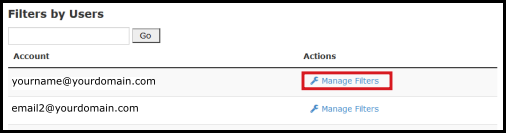
- Click Create a New Filter.
- In the Filter Name field, enter a filter name.
Note: Each filter name must be unique. Do not reuse an existing filter name.
- Configure the filter rules and actions.
- Click Create to save your filter.
Email filter rules and actions
Expand the sections below to view the available rules, conditions, and actions for configuring email filters.
| Rule | Description |
|---|---|
| From | Filters messages based on the sender's email address. |
| Subject | Filters messages based on the email subject line. |
| To | Filters messages sent to a specific recipient address. |
| Reply | Filters messages based on the reply-to address. |
| Body | Filters messages based on content within the email body. |
| Any Header | Filters messages using information found in the email header. |
| Any Recipient | Filters messages sent to any recipient listed in the email. |
| Has Not Been Previously Delivered | Filters messages that have not yet been delivered. |
| Is an Error Message | Filters system-generated error messages. |
| List ID | Filters messages from mailing lists. |
| Spam Status | Filters messages based on SpamAssassin status. |
| Spam Bar | Filters messages based on the SpamAssassin spam rating. |
| Spam Score | Filters messages using the SpamAssassin score value. |
| Condition | Description |
|---|---|
| contains | Contains the specified keyword or phrase. |
| matches regex | Matches the regular expression you define. |
| does not contain | Does not contain the specified keyword or phrase. |
| equals | Exactly matches the specified value. |
| begins with | Starts with the specified value. |
| does not begin | Does not start with the specified value. |
| ends with | Ends with the specified value. |
| does not end with | Does not end with the specified value. |
| does not match | Does not exactly match the specified value. |
| Action | Description |
|---|---|
| Discard Message | Deletes the message without notifying the sender. |
| Redirect to Email | Forwards the message to another email address. |
| Fail with Message | Rejects the message and sends a failure notification to the sender. |
| Stop Processing Rules | Prevents any additional filter rules from running. |
| Deliver to Folder | Moves the message to a specified folder. |
| Pipe to a Program | Sends the message to a specified program. |
Manage existing filters
After creating a filter, it appears in the Current Filters list.
From the Current Filters list, you can:
- Click Edit to modify the filter.
- Click Delete to remove a filter.
Test the filter
After creating your email filter, use the Filter Test tool to verify that the filter works as expected. If necessary, return to the Current Filters list to update or delete existing filters.